
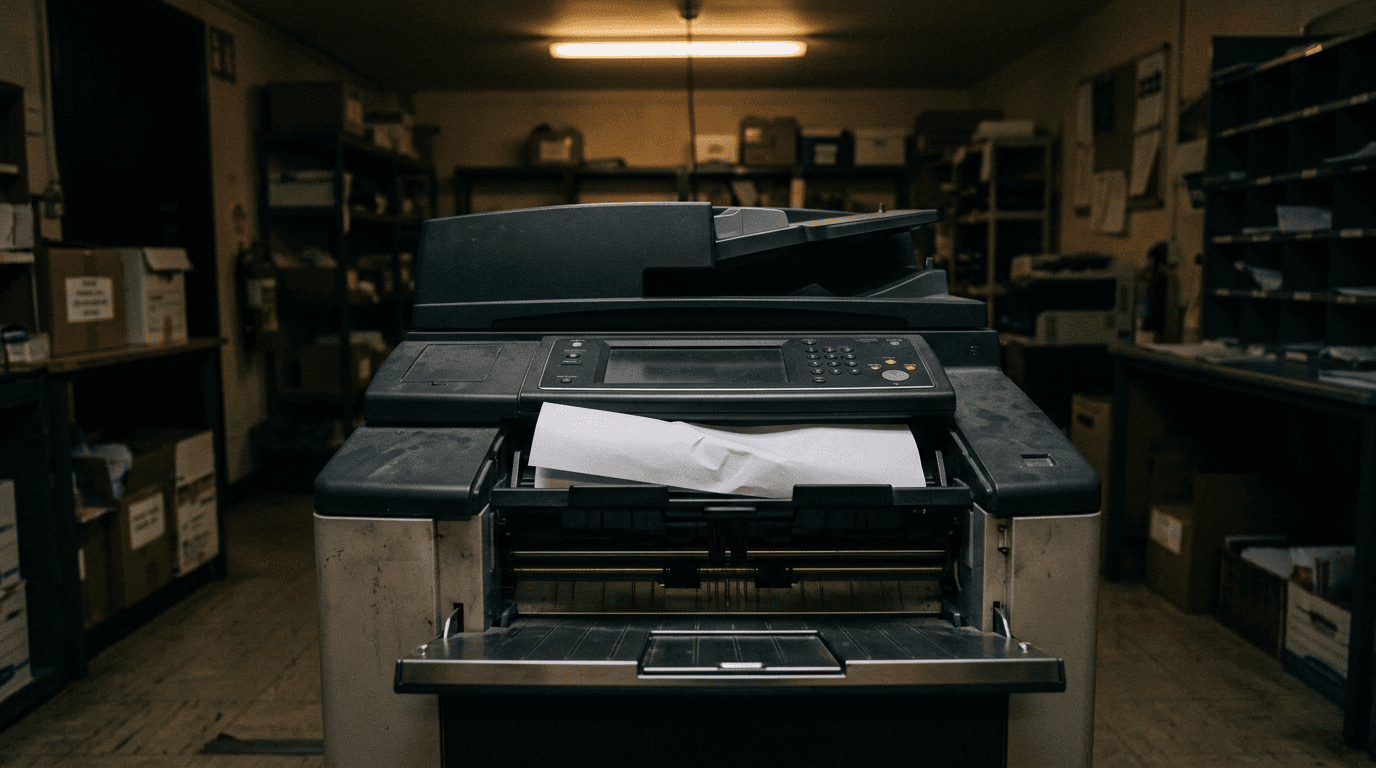
At the end of December 2026, Exchange Online disables SMTP AUTH basic authentication by default. If a device or app in your office signs into smtp.office365.com with a username and password, it stops sending mail. Your copier, your alarm panel and your 2014 line-of-business app are the ones to worry about.
Microsoft has published the month, not a specific day, and the setting can be switched back on per tenant or per mailbox. Plan on the month.
What to do about it:
- Pull the SMTP AUTH clients report in the Exchange admin center to see what's actually sending with basic auth.
- Move each sender to OAuth, an SMTP relay connector, or the Graph API.
- Re-enable basic auth per mailbox only for what you can't move yet, and put a date on it.
What exactly changes at the end of December?
Existing tenants get SMTP AUTH basic authentication disabled by default, and admins can still switch it back on per tenant or per mailbox. New tenants created after that point don't get the option at all: OAuth becomes the only supported authentication method for client submission, per Microsoft's updated timeline.
This deadline has already moved once. Tony Redmond's write-up of the January 2026 revision quotes Microsoft's reasoning: customers "face real challenges modernizing legacy email workflows." Read that as: everyone has a printer nobody wants to touch.
What actually breaks
Anything that authenticates with a stored username and password to send mail. In a typical 20-person office that list runs longer than owners expect:
- Multifunction copiers and scanners doing scan-to-email
- Alarm panels, cameras and building systems that email alerts
- Practice management, ERP and accounting software sending invoices or statements
- Backup software and NAS boxes emailing job reports
- Old PowerShell scripts and scheduled tasks using Send-MailMessage
- Website contact forms configured with a mailbox password
- Any app set up by a vendor who's since gone quiet
The failure is quiet, which is the problem. Scan-to-email doesn't throw a banner. It just stops arriving, and somebody notices weeks later that nobody got the signed contracts.
So set yourself a tripwire. Keep the SMTP AUTH clients report handy through January and watch for any sender that was posting messages in December and posts none afterwards. That's your broken device, found before a client finds it for you.
How do I find out what's using it?
Use the SMTP AUTH clients report. Microsoft puts it at Reports, then Mail flow, in the new Exchange admin center, and it lists every sender address using client submission with the authentication protocol beside it.
Basic auth shows as TlsAuthLogin; modern auth shows as XOAUTH2. Every TlsAuthLogin row is a thing that breaks in December.
The report defaults to the last 7 days and you can widen the range to 90. Widen it. A quarterly billing run or an annual statement job won't appear in a 7-day window, and those are the ones that fail loudest.
Then check what's merely permitted. Microsoft documents the settings; in Exchange Online PowerShell:
- Get-TransportConfig | Format-List SmtpClientAuthenticationDisabled for the whole tenant.
- Get-CASMailbox -Identity <mailbox> | Format-List SmtpClientAuthenticationDisabled per mailbox.
In the Microsoft 365 admin center the same per-user setting sits under Users, Active users, then the user's Mail tab and Manage email apps. Look at Authenticated SMTP.
Then walk the building. Those cmdlets tell you which mailboxes can use SMTP AUTH; they don't tell you which copier has the password saved in its web interface.
Where to move each sender
Microsoft gives you three paths for devices and apps, and they are not interchangeable.
OAuth on client submission. The right answer where the device supports it. It keeps external delivery, keeps sent mail in Sent Items, and needs a licensed mailbox. Check the firmware before you assume a copier can do it, and before you buy a replacement.
SMTP relay via a connector. No licensed mailbox needed, higher limits, external recipients fine, and it works with devices that will never speak OAuth. The catch is in Microsoft's own requirements: "Your printer or app host requires a static IP address that's visible to Microsoft 365 or Office 365 for authentication."
A dynamic IP isn't automatically a dead end, since a connector can authenticate by certificate instead. But sort out which of the two you're using before you configure anything.
Direct Send. No authentication at all, but internal recipients only, and Microsoft calls it suitable for "advanced users managing legacy devices."
There's a second reason to be careful with Direct Send. It's the same feature attackers abuse to drop spoofed internal mail into your tenant, which is why Microsoft added a RejectDirectSend switch that blocks anonymous mail claiming to be from your own domain. We covered how that abuse works. Don't reopen a hole to fix a printer.
Two more options, with a caveat on each. For custom applications, the Graph sendMail API is the modern answer and stores no password, though it does need an Entra app registration with admin-consented Mail.Send permission, so budget a developer or your MSP for the setup. For bulk automated mail there's High Volume Email, but read its scope first: Microsoft states HVE is for "internal email" and that "HVE accounts cannot be used for external email delivery." If your app emails customers, HVE is the wrong destination.
Can I just turn it back on in January?
Yes, and that's a reasonable move if December catches you mid-project. Set-TransportConfig and Set-CASMailbox both still work, so you can re-enable narrowly: one mailbox for the copier rather than the whole tenant.
Treat it as a clock, not a reprieve. Microsoft announces the permanent removal date in the second half of 2027, and that one won't be reversible. A copier that needs replacing anyway is cheaper to handle on your schedule than during an announced cutoff.
Worth checking at the same time: client submission caps at 10,000 recipients per day and 30 messages per minute, so an app that outgrew those limits has a second problem waiting behind this one. Our guide to what your tenant can actually send covers the rest of the ceilings.
And if you're touching the copiers anyway, the rest of their configuration usually needs attention too.
Frequently asked questions
What is SMTP AUTH, in plain terms?
It's a device or app signing into Microsoft 365 with a mailbox username and password to send email, the same way Outlook used to before modern authentication. The username and password part is what's being retired. The sending part isn't going anywhere; it just needs a token instead of a password.
Will my staff's Outlook stop working?
No. Outlook and the Microsoft 365 apps have used modern authentication for years. This change only touches devices and applications that submit mail with basic credentials, which in most offices means hardware and legacy software, not people.
Is a shared mailbox password a safe way to do this?
It never was. A mailbox password sitting in a copier's web interface is readable by anyone who can reach that copier, and it's a real account with real sign-in rights. This retirement closes a door that's been propped open in a lot of small offices for years.
How much lead time do we actually need?
Our recommendation is to have the inventory finished by mid-October 2026. The report takes an afternoon, but vendor replies are slow and copier firmware updates sometimes need a service call, so the calendar is the constraint rather than the work. Starting in December is how people end up re-enabling basic auth in a hurry.
What if a vendor says their software can't do OAuth?
Route it through an SMTP relay connector with a static IP, which handles both internal and external recipients. If the vendor can't manage that either, you've learned something useful about their roadmap, and it's worth putting them on next year's replacement list.
If you'd rather not inventory every copier, script and line-of-business app yourself before December, get in touch. We'll map what's sending mail through your tenant and give you the migration plan. No charge for the assessment.


Discuss microsoft 365 management & backup for your business.
Tell us about your current systems, the result you need and your timeline. We will discuss the work, responsibilities and pricing before you decide on an engagement.